
What It Actually Takes to Run Long-Running Workflows in Production


The four failure modes that only appear when a workflow runs for hours, days, or weeks — and the specific engineering decisions that prevent each one
TL;DRRunning a Temporal workflow for seconds is straightforward. Running one for hours, days, or weeks introduces four failure modes that staging environments structurally cannot surface: silent activity crashes (no heartbeat), unbounded history growth (no Continue-As-New), non-determinism that only triggers on long replays, and signal handling that breaks across worker restarts. Each has a specific cause, a specific engineering fix, and a specific verification step. This post covers all four. |
Why Long-Running Workflows Are a Different Problem
Most Temporal workflows complete in seconds or minutes. You start them, they run, they finish. The durability model — replay on crash, at-least-once activity execution, durable timers — works transparently in the background, and you never need to think about it explicitly.
Long-running workflows are different. When a workflow runs for hours, days, or weeks, it accumulates event history continuously. It experiences worker restarts as a normal part of its lifecycle rather than as rare exceptions. It relies on timers that span real calendar time rather than seconds. And it receives signals from external systems that may arrive at any point during execution, including during the moments when a worker is restarting.
The four failure modes below are each a direct consequence of these properties. None of them are bugs in Temporal. All of them are engineering decisions that teams need to make explicitly when designing workflows intended to run for extended periods. The diagram below shows all four together before we walk through each one in depth.
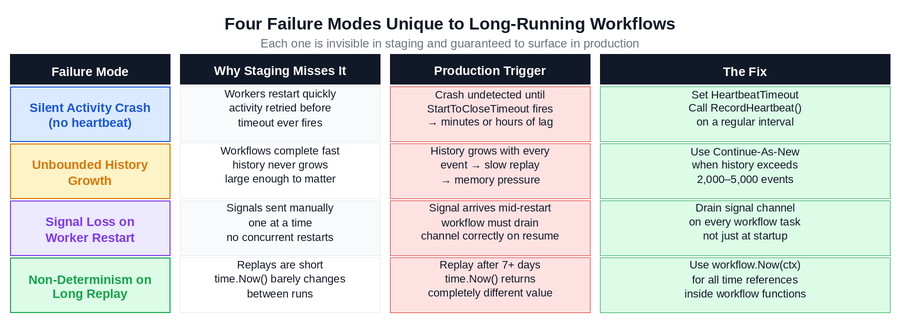
Figure 1: The four failure modes unique to long-running workflows, why staging misses them, what triggers them in production, and the fix for each. Each row represents a distinct engineering decision.
Failure Mode 1: Silent Activity Crashes
This is the most impactful failure mode for long-running workflows, and the most commonly overlooked. When an activity is executing a long-running operation — processing a large file, waiting on an external API, running an ML inference job — Temporal has no built-in mechanism to know whether the activity is progressing or whether the worker has crashed unless the activity explicitly reports its liveness.
Without HeartbeatTimeout configured and RecordHeartbeat() called inside the activity, a worker crash during a long-running activity is invisible to Temporal. The activity appears healthy. No failure event is recorded. The workflow waits. The only timeout that will eventually catch this is StartToCloseTimeout — which, for legitimately long operations, might be set to 30 minutes, an hour, or longer. The result is silent downtime of exactly that duration before the activity is rescheduled.
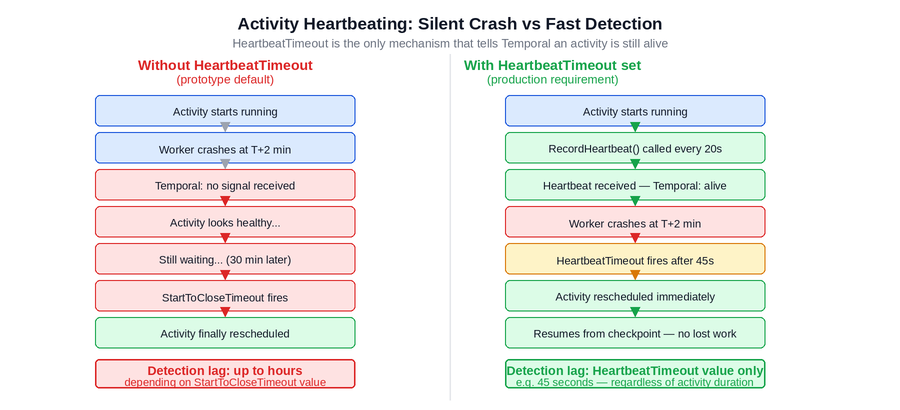
Figure 2: Without HeartbeatTimeout (left), a worker crash goes undetected until the full StartToCloseTimeout expires — potentially hours of silent downtime. With HeartbeatTimeout set (right), the crash is detected within seconds of the heartbeat gap and the activity is rescheduled immediately.
The fix has two parts that must both be present. First, HeartbeatTimeout must be set on the activity options to a value roughly 2x the heartbeat interval — for example, if the activity calls RecordHeartbeat() every 20 seconds, HeartbeatTimeout should be set to approximately 45 seconds. Second, the activity implementation must actually call RecordHeartbeat() on that interval. Setting HeartbeatTimeout without calling RecordHeartbeat() inside the activity causes the activity to time out immediately.
HeartbeatTimeout serves a second purpose that is equally valuable: progress checkpointing. RecordHeartbeat() accepts a details parameter that is persisted with the heartbeat. If the activity is retried after a crash, the new execution can read the HeartbeatDetails from the previous attempt and resume from where it left off rather than reprocessing from the beginning. For activities processing large datasets or expensive operations, this is the difference between a seamless recovery and re-running hours of work.
How to Verify Before Go-LiveDeliberately crash the worker while a long-running activity is executing in a staging environment. Verify that the activity is rescheduled within HeartbeatTimeout seconds and that the new execution resumes from the checkpoint rather than starting from the beginning. If the activity is not calling RecordHeartbeat(), no checkpoint exists and the whole operation restarts. |
Failure Mode 2: Unbounded History Growth
Temporal’s durability model works by persisting every event in the workflow’s lifetime to an append-only event history. Every activity scheduled, every activity completed, every signal received, every timer fired — each one adds events to the history. When Temporal needs to reconstruct the workflow’s state after a worker crash, it replays the entire history from the beginning.
For a workflow that runs for seconds and generates dozens of events, this is invisible. For a workflow that has been running for weeks and has accumulated thousands of events, replay becomes progressively slower and more memory-intensive. Left unchecked, this growth degrades worker performance over the lifetime of the workflow and can eventually hit Temporal’s history size limits.
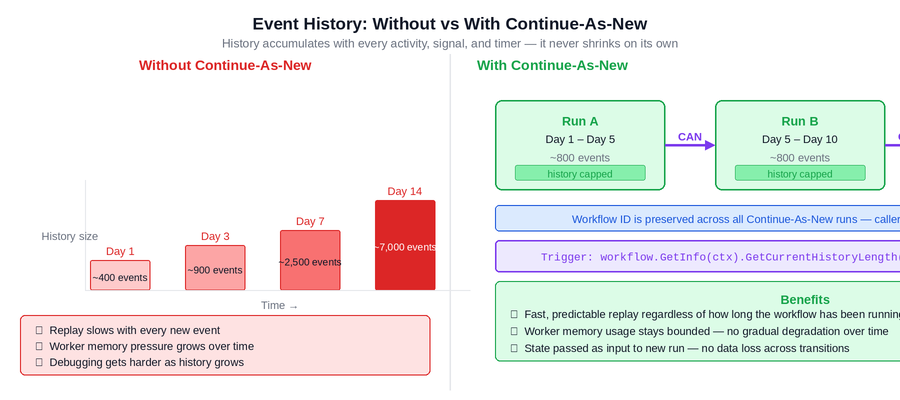
Figure 3: Without Continue-As-New (left), history grows continuously over the workflow’s lifetime and replay slows with every new event. With Continue-As-New (right), history is periodically reset while the workflow identity is preserved — replay stays fast and memory usage stays bounded.
The solution is Continue-As-New: a Temporal primitive that allows a workflow to complete itself and immediately start a new run with the same workflow ID, passing its current state as the input to the new run. From the outside, the workflow appears to run continuously. From the inside, history is periodically reset, keeping replay time and memory usage bounded regardless of how long the workflow has been running.
The correct trigger for Continue-As-New in a long-running workflow is history event count, not wall-clock time. Use workflow.GetInfo(ctx).GetCurrentHistoryLength() and trigger Continue-As-New when it exceeds a threshold — typically between 2,000 and 5,000 events, depending on average event size. Triggering based on time or iteration count can produce large histories if individual events are large, or unnecessary transitions if events are small.
The Critical Detail: State TransferWhen Continue-As-New fires, the new run starts with only the state you explicitly pass as its input. Any work items buffered in memory in the previous run must be included in the new run’s input, or confirmed written to an external store before Continue-As-New executes. Dropping buffered items across a Continue-As-New transition is the most common bug in long-running queue workflow implementations. |
Running Temporal Workflows That Last Days or WeeksLong-running workflows behave differently in production. Heartbeats, Continue-As-New, replay determinism, signal handling, and stuck workflow alerts all become reliability requirements once workflows run beyond a few minutes. Xgrid’s Temporal workflows whitepaper shows how durable execution supports approvals, field jobs, onboarding, batch processing, and other multi-day operations at scale. |
Failure Mode 3: Non-Determinism on Long Replay
Temporal’s replay mechanism requires workflow functions to be deterministic: given the same event history, the workflow function must always produce the same sequence of commands. Non-determinism violations — using time.Now() instead of workflow.Now(ctx), calling random functions inside workflow code, making direct network calls — break this guarantee.
For workflows that complete in minutes, non-determinism violations are often invisible. The gap between original execution and replay is so small that time.Now() returns nearly the same value, and the function branches identically. The bug is present in the code but the conditions to trigger it do not exist.
For a workflow that has been running for seven days and experiences a worker restart, the replay gap is seven days. time.Now() returns a completely different value. The workflow function may branch differently. The recorded event history says Activity A was scheduled; the replay tries to schedule Activity B. Temporal detects the mismatch and the workflow is stuck permanently in a non-determinism error state.
The fix is applying Temporal’s workflow-safe APIs consistently: workflow.Now(ctx) for all time references inside workflow functions, workflow.Go() for concurrency, and activities for all I/O and non-deterministic operations. For long-running workflows specifically, this also means explicitly testing replay across a multi-day gap rather than relying on the short-window coverage that staging provides.
Testing Determinism for Long-Running WorkflowsStandard determinism testing restarts the worker mid-workflow and verifies correct replay. For long-running workflows, also test replay after a simulated extended gap by running the Temporal workflow replayer against saved event histories. Any workflow that is expected to run for days should have its replay tested against a history that is at least 24 hours old before going to production. |
Failure Mode 4: Signal Handling Across Worker Restarts
Signals are Temporal’s mechanism for external systems to communicate with a running workflow — advancing state, cancelling an operation, providing data the workflow is waiting on. In staging, signals are sent manually by an engineer and the workflow processes each one before the next arrives. Worker restarts are rare and brief.
In production for a long-running workflow, the window of potential signal delivery spans days or weeks. A signal sent by an external system at exactly the moment a worker is restarting will be persisted to the event history by Temporal — signals are not lost on the Temporal side — but the workflow must correctly drain the signal channel when it resumes after replay, not only at startup.
The common bug: a workflow that reads from a signal channel only during initialization will miss signals that arrived during a restart window. The signals are in the event history and will be replayed, but if the workflow function does not read from the channel at the point in replay where those signals appear, they are effectively ignored.
The correct pattern is to drain the signal channel on every workflow task execution, not just at startup. This ensures that signals buffered during any restart window are processed correctly regardless of when they arrived relative to the worker’s availability.
Why Signals Are Not Lost During RestartsTemporal persists signals to the event history the moment they are received — before any workflow code processes them. On replay after a worker restart, the workflow function re-executes against the full history, including recorded signal events. The workflow must correctly handle these signals during replay. The guarantee is that signals are never dropped by Temporal. The responsibility is that the workflow code processes them correctly on resume. |
Timeout Coverage for Long-Running Activities
Long-running activities have specific timeout requirements that differ from short-lived ones. All four of Temporal’s activity timeout types are relevant, and missing any one of them leaves a specific gap.
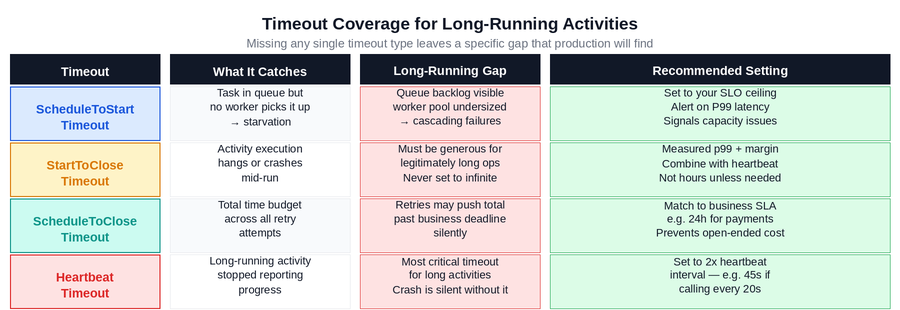
Figure 4: All four activity timeout types and their specific relevance to long-running activities. The HeartbeatTimeout row is the most critical for activities running longer than a few seconds. The ScheduleToCloseTimeout row is most critical for ensuring total retry duration respects business SLAs.
The interaction between StartToCloseTimeout and HeartbeatTimeout deserves special attention. StartToCloseTimeout must be generous enough to allow the activity to complete its legitimate work. HeartbeatTimeout must be short enough to detect crashes quickly. These two values serve different purposes and should be set independently: StartToCloseTimeout based on the maximum expected activity duration, HeartbeatTimeout based on the heartbeat interval.
For activities where the duration is genuinely unbounded — a workflow waiting for a human approval, a batch job whose completion time depends on data volume — ScheduleToCloseTimeout becomes the most important bound. It sets a hard ceiling on the total time the activity can consume across all retry attempts, which prevents open-ended cost accumulation and makes workflow behaviour predictable from the caller’s perspective.
The Observability Gap
Long-running workflows introduce an observability challenge that short-lived ones do not: a workflow stuck in a failure state may not generate any visible signal for hours. A workflow that is waiting for a heartbeat that will never come, or blocked on a signal that was never delivered, or caught in a non-determinism error loop, stays in the Running state in the Temporal UI with no visible indication that anything is wrong.
The production requirement for long-running workflows is an age-based alert: any workflow in the Running state past its expected maximum duration should trigger an alert. This requires knowing the expected maximum duration for each workflow type — which itself forces a useful design discipline of thinking explicitly about the lifecycle bounds of long-running workflows before they are deployed.
Custom search attributes, set at workflow start, are the mechanism that makes this alerting practical. Setting attributes like WorkflowType, ExpectedMaxDurationHours, and TeamOwner at workflow start allows visibility queries to filter and group workflows by operational properties without requiring engineering involvement for each investigation.
The Full Checklist: Prototype to Production
The diagram below summarises all five decision areas that distinguish a prototype long-running workflow from a production-ready one. Each row is an independent decision that must be made explicitly before go-live.
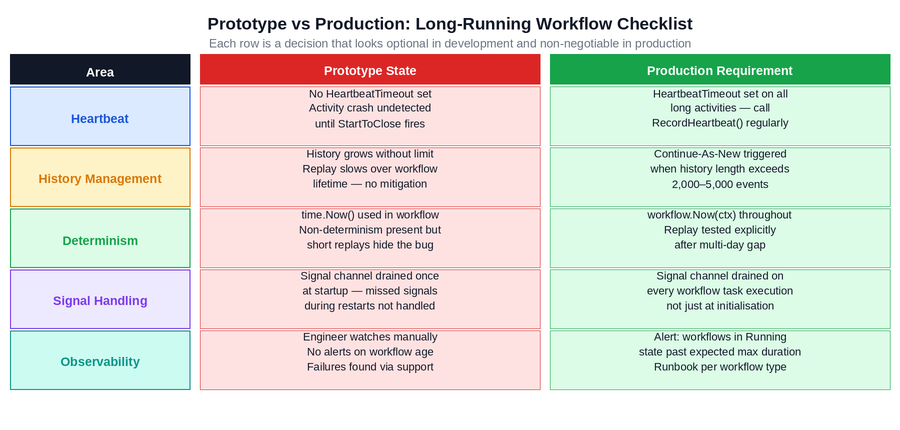
Figure 5: The complete prototype-to-production checklist for long-running workflows. Each area requires a specific engineering decision. The right column is not aspirational — it is the minimum required to avoid the four failure modes described in this post.
Two of these deserve emphasis because they are the most commonly deferred:
- Heartbeat is the single highest-leverage change for long-running activities. A single missing HeartbeatTimeout can turn a 30-second worker crash into 60 minutes of silent downtime. It is a configuration change and a few lines of code in the activity implementation. The cost of deferring it is paid in production incidents.
- Continue-As-New is the most commonly skipped requirement for long-running queue workflows. Teams implement the signalWithStart batching pattern correctly and then discover three months later that their queue workflow’s replay time has grown to minutes because the history has accumulated tens of thousands of events. Adding Continue-As-New after the fact requires careful state transfer design. Adding it upfront is straightforward.
Production Readiness Checklist for Long-Running Temporal Workflows
Before shipping a workflow that runs for hours, days, or weeks, confirm:
- Long-running activities have HeartbeatTimeout configured
- Activities call RecordHeartbeat() at a regular interval
- Heartbeat details include enough checkpoint data to resume after retry
- StartToCloseTimeout reflects the maximum legitimate activity duration
- ScheduleToCloseTimeout caps total retry duration across attempts
Closing Thoughts
The operational requirements for long-running workflows are not complicated. HeartbeatTimeout with checkpointing, Continue-As-New with correct state transfer, workflow.Now(ctx) for determinism, signal channel draining on every task, and age-based alerting. Each of these is a small number of lines of code or configuration.
What makes them easy to miss is that none of them are required to make a workflow function correctly in staging. Staging workflows complete quickly, workers restart rarely, signals arrive manually, and an engineer is always watching. The conditions that surface long-running workflow failures are all properties of production environments: real execution durations, real worker restart frequencies, real concurrent signal delivery, and real unsupervised operation.
If your team is building a workflow that will run for hours, days, or weeks, the checklist in Figure 5 is the right starting point before the first production deployment. Each item corresponds to a specific class of production incident. Verifying all five before launch is significantly less expensive than diagnosing any one of them after it.
Is your team still the bottleneck for long-running workflow design reviews?
If every new long-running workflow requires an engineer to manually trace through heartbeat, history, determinism, and signal handling before each deployment — that’s a structured review gap that compounds with every new workflow type.
Xgrid offers two entry points depending on where you are:
- Temporal Launch Readiness Review — we review your long-running workflow designs against the five areas above, identify which are unresolved, and deliver a concrete go / no-go scorecard before launch. Two weeks, fixed scope.
- Temporal Reliability Partner — for teams that want a named Temporal expert embedded long-term to run design reviews before new workflows go live and catch long-running workflow gaps before they become production incidents.
Both are fixed-scope. No open-ended retainer required to get started.
Frequently Asked Questions About Long-Running Temporal Workflows
What is a long-running Temporal workflow?
A long-running Temporal workflow is any workflow that runs for hours, days, weeks, or longer while preserving execution state.These workflows usually involve timers, signals, external approvals, large jobs, or business processes that cannot be completed in a single short request.
Why do long-running Temporal workflows need heartbeats?
Heartbeats tell Temporal that a long-running activity is still alive and making progress.Without heartbeats, a crashed worker may not be detected until the full activity timeout expires, causing unnecessary downtime and delayed recovery.
When should you use Continue-As-New in Temporal?
Use Continue-As-New when a workflow’s event history can grow large over time and slow down replay.For long-running workflows, the best trigger is usually history event count, with current state explicitly passed into the next run.
How do you monitor long-running Temporal workflows in production?
Monitor workflow age, history size, heartbeat gaps, activity retries, signal processing, and stuck Running executions.Search Attributes and age-based alerts help operations teams find workflows that appear healthy but are no longer making progress.
Related Temporal Production Guides
- For monitoring stuck workflows, heartbeat payloads, replay-safe metrics, and Search Attributes, read: Temporal Observability in Production Guide
- For batching, signalWithStart, and Continue-As-New cost control, read: Temporal Batching vs Single Workflows: Cost Guide
- For retry behavior during outages and long-running recovery paths, read: Temporal Retry Policies at Scale
- For high-availability planning, failover readiness, and idempotency reviews, read: Temporal Workflow Best Practices for High Availability
Related Articles

Related Articles

Established in 2012, Xgrid has a history of delivering a wide range of intelligent and secure cloud infrastructure, user interface and user experience solutions. Our strength lies in our team and its ability to deliver end-to-end solutions using cutting edge technologies.
NAVIGATE
Cloud & DevOps Web & Mobile Apps Temporal Digital Marketing GTM Engineering Marketo Consulting HubSpot Consulting Company Careers ResourcesOFFICE ADDRESS
US Address:
Plug and Play Tech Center, 440 N Wolfe Rd, Sunnyvale, CA 94085
Dubai Address:
Dubai Silicon Oasis, DDP, Building A1, Dubai, United Arab Emirates
Pakistan Address:
Xgrid Solutions (Private) Limited, Bldg 96, GCC-11, Civic Center, Gulberg Greens, Islamabad
Xgrid Solutions (Pvt) Ltd, Daftarkhwan (One), Building #254/1, Sector G, Phase 5, DHA, Lahore
Xgrid © 2026. All rights reserved.